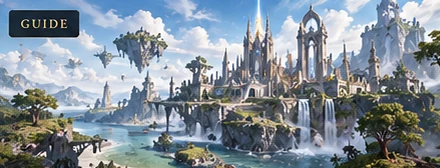
You crest a ridge in Aion 2, the fog burns off, and a canyon you didn’t know existed sprawls below you in gold and violet. You stop dead — and then notice the action bar, chat box, and minimap sitting right across the shot. Every aion 2 screenshot worth sharing comes down to two skills: knowing where the capture tool lives, and knowing how to clear the frame before you press it. This guide covers both, then goes further — composition, locations, posing, and the settings that turn a raw capture into something you’d actually post.
Aion is one of the most photogenic MMOs ever built: continents sliced by floating islands, unlimited gliding, dynamic time-of-day, and glowing silhouettes. Give it a clean frame and a little compositional intent, and you have shots that look like concept art.
1. How to Take an Aion 2 Screenshot
The default keybind is F12 for a standard capture and Print Screen for a full-screen grab. Full-screen captures anything outside the game window too — handy for grabbing a browser tab with your character’s stats next to it. Rebind either under Options → Controls → Screenshot.
A few things worth knowing before you start shooting:
- Multi-capture. Set a capture count in the screenshot options and the bind produces a numbered series — ideal for a rotation shot of your whole cosmetic set without re-posing between every frame.
- Instant post-processing. The game applies its own sharpening and color grading to captures automatically, so what lands in the file is very close to what you saw. Don’t expect a raw, ungraded image.
- Full-screen vs. windowed. If you’re running windowed or borderless, a full-screen capture can include desktop icons on the first frame after alt-tabbing. Clear your desktop once and you’ll never think about it again.
2. Hiding the UI for Clean Photos
This is the single biggest upgrade to your screenshots, and it takes five seconds. The combat HUD exists to keep you alive in a raid, not to make your character look good.
Aion 2 exposes a dedicated interface-hiding toggle — Options → Interface → “Hide UI”, commonly bound to Ctrl + F12 (check your own keybind list; some builds use Ctrl + F10). One press strips the action bars, chat, minimap, quest tracker, buff bars, and floating names out of the frame. Press it again and everything comes back instantly.
A few refinements pros use:
- Hide before the pose, not after. Toggle the UI off first, then set up your shot. Hiding it after you’ve already framed the vista often leaves your character facing slightly off-center.
- Free the mouse. Once the UI is hidden, drag the cursor off the window edge so a stray click doesn’t spin your camera mid-shot.
- Partial hiding is underrated. Individual UI elements toggle separately, so a weapon showcase can keep the tooltip visible while chat and combat text stay hidden.
- Nameplates clutter group photos. They vanish with the rest of the UI, so plan group shots with it already off.
3. Composition Tips for MMO Screenshots
Once the frame is clean, you’re doing the same job a landscape photographer does: arranging elements in a rectangle. You don’t need an expensive camera. You need a rule set.
| Composition rule | What it means in Aion 2 | Practical move |
|---|---|---|
| Rule of thirds | Put your subject off-center, near a grid intersection | Frame your character a third in from the left or right edge, not dead center |
| Leading lines | Roads, rivers, ridgelines pull the eye toward your subject | Position yourself so a canyon wall or flight path sweeps toward your character |
| Horizon placement | Horizon in the upper third = drama; center = calm; low = vast scale | Raise the camera for giant landscape shots, drop it for towering structures |
| Frame within frame | Use architecture, tree limbs, arches to border the shot | Shoot through a ruined gateway or between two pillars for depth |
| Foreground interest | Something close and out of focus adds depth | Glide past a branch or rock and let it clip the bottom of the frame |
| Negative space | Empty sky or ground gives the subject room to breathe | For a wings-spread glamour shot, give yourself clear sky above and behind |
| Scale reference | Tiny distant objects make your character feel huge | Include a distant fortress, a bridge, or a bird gliding far below |
Three habits cover most of it. Check the background for stray nameplates before you capture — ten seconds of looking saves ten minutes of editing. Shoot slightly below eye level; a low angle makes a character read as powerful, a high angle makes them small. Take three or four variants per shot — move a step, change the angle a few degrees, capture again. You need roughly a dozen raw frames to get one keeper.
And remember: with unlimited flight, you have camera positions no ground-based photographer could reach. Hover two hundred meters above a battlefield, tilt the camera down, and let the tiny NPCs below give you an enormous sense of altitude.
4. Best Photo Locations in Aion 2
Aion 2’s continent is enormous, so “where do I go” is really “how do I find vistas I haven’t seen yet.” A few categories consistently produce the best images:
- Floating islands and their undersides. The sky islands are the signature of Aion 2. Glide to the edge of one and look down — the drop into open air, with land far below, is a shot you can never stage on the ground.
- Ridge lines at dawn and dusk. Lighting is most dramatic during transitions. Find a long ridgeline, stand along it, and point the camera down its length so it becomes a leading line.
- Ruins and monumental architecture. Broken arches, collapsed fortresses, and giant statues give you natural frames and a sense of scale. Low camera, wide shot, small character.
- Water. Falls, lakes, and shorelines reflect the sky and add a second light source. Time it so the sun is behind or beside you, not straight into the lens.
- Battlefields and dynamic content. Fights, spell effects, and glowing bosses produce motion and light. Take a burst and pick the frame where the effects peak.
To plan a dedicated photo run, use our Aion 2 world map guide to fast-travel instead of grinding the flight time. Bring a gliding speed buff and give yourself at least an hour — the good frames are rarely near a portal.
5. Character Posing and Gear Showcase
Vista shots are only half of Aion 2 photography. The other half is showing off the character, and Aion’s cosmetic systems give you plenty to work with. Full wardrobe details live in our Aion 2 Fashion & Cosmetics Guide, but here are the posing fundamentals:
- Spread the wings early. Wings are the best asset a character has. Fully extended, with the camera slightly below and to the side, they read as wingspan rather than as a backpack.
- Use emotes for silhouette. Idle animations that turn the character, adjust a cloak, or draw a weapon create natural curves. Start the emote, wait a beat, capture mid-motion.
- Turn off motion blur for showcase shots. Blur looks cinematic in a vista photo and terrible on a weapon’s details.
- Keep the background simple. A busy forest or crowded town fights your armor’s textures. Step back until the background is plain sky, water, or a clean wall.
- Shoot details separately. Boots, pauldrons, weapon glow, and backpieces each deserve a tight frame. Zoom in, hide the UI, capture.
- Multi-capture your full set. Rather than swapping armor piece by piece, use the numbered capture feature and run through the rotation.
6. Screenshot Settings for Maximum Quality
Everything above assumes your settings aren’t sabotaging the image. Low anti-aliasing and a scaled-down UI make screenshots look soft and blocky no matter how good your composition is. Tune these under Options → Display; for the wider performance side see our Aion 2 Settings & Optimization Guide.
- Display resolution. Capture at your monitor’s native resolution. Anything else is upscaled, and upscaled fantasy art loses fine detail in armor filigree and distant geometry.
- Anti-aliasing. Push MSAA as high as your frame rate allows — 4x or 8x. Edges cutting across bright sky are exactly where aliasing shows most.
- UI scale. Leave it at 100% for UI-visible captures. Raising it to make in-game text readable on 4K also makes posted screenshots look chunky.
- Shadow quality. Medium to high. Shadows sell the sense of scale in open terrain.
- Effect and texture quality. Max out for photo sessions, drop them for grinding. Effects decide how good your combat captures look.
- Frame rate matters. Smooth frames make precise camera positioning far easier. Fix stuttering before blaming your composition.
FAQ
How do you take screenshots in Aion 2?
Press F12 for a standard in-game capture or Print Screen for a full-screen grab, depending on your keybind configuration. Both are rebindable under Options → Controls → Screenshot. Set a capture count for numbered multi-shots when shooting a cosmetic set.
How do you hide the UI in Aion 2 for screenshots?
Use the interface-hiding toggle in Options → Interface (commonly Ctrl + F12). It removes the action bars, chat, minimap, buff bars, quest tracker, and nameplates in a single press. Toggle it back with the same key.
Where are Aion 2 screenshots saved?
Captures land in a Screenshot folder inside the game directory — typically alongside the client folder or in the screen subfolder under bin64. If you can’t find it, open the folder from the in-game options menu or point captures at a custom path.
How do I take good MMO screenshots?
Three things: clear the frame (hide the UI), apply a composition rule (rule of thirds, leading lines, deliberate horizon placement), and shoot at the best light of day. Then take multiple variants and pick the keeper in editing rather than trying to get it perfect in one frame.
Conclusion
Good aion 2 screenshot work is less about gear and more about preparation. Clean the frame, know your keybinds, know where your captures land, and set the display options before you go hunting. From there it’s just time in the world — glide somewhere ridiculous, wait for the light to turn, and take more frames than you think you need.
Then let editing finish the job: crop for composition, nudge white balance toward the scene’s actual mood, add a subtle vignette to pull the eye to your subject. When you’re planning where to shoot next, remember that gear and zones change constantly — our Aion 2 World Map Guide and fashion coverage are worth a reread before each session.
For more Aion 2 guides, bookmark Aion Kinah Hub.